Showing posts with label eclipse. Show all posts

Sunday, June 5, 2011

Short introduction to jMock

The jUnit framework is a great tool for testing your Java application. But writing test cases can be complex. Especially when the object under test is dependent on several other objects, which in turn depend on other objects. This means the whole dependency graph has to be created before the test can be executed. Building this graph can be complex, and error-prone.

Luckily for us, there exists a framework called jMock. jMock enables you to create mock objects that mimic behavior of dependent objects. We can configure the expected interaction and behavior of these objects.

Let's start with an example class we want to test:

package com.javaeenotes;

public class TestSubject {
private DependentClassInterface depObject;

public TestSubject(DependentClassInterface depObject) {
this.depObject = depObject;
}

public String method() {
return depObject.method();
}
}

The class is dependent on a class with the following interface:

package com.javaeenotes;

public interface DependentClassInterface {
public String method();
}

The interface specifies a method that returns a String. The actual implementation of this interface is not required for jMock. jMock uses the interface to create an object with the same interface you can use in your test cases.

An example test case:

package com.javaeenotes;

import static org.junit.Assert.assertTrue;

import org.jmock.Expectations;
import org.jmock.Mockery;
import org.junit.Test;

public class TestSubjectTest {
@Test
public void testMethod() {
Mockery context = new Mockery();
// Create mock object.
final DependentClassInterface depObject = context
.mock(DependentClassInterface.class);

// Test object is instantiated with mock object.
TestSubject testSubject = new TestSubject(depObject);

// Configure expectation and behavior.
context.checking(new Expectations() {
{
oneOf(depObject).method();
will(returnValue("hello"));
}
});

// Test outcome.
assertTrue(testSubject.method().equals("hello"));

// Check if expectations are satisfied.
context.assertIsSatisfied();

}
}

In this test case, we create the object under test with a mock object. The expected interaction and behavior is then configured. First, the method() method is called, which then returns a string value "hello". Other interactions, like calling the same method twice, will result in an error.

As you can see, jMock is a very valuable extension to the jUnit framework, which makes writing test cases much easier.

Links:


Note: when running jMock in Eclipse, the following error can occur when running test cases:

java.lang.SecurityException:
class "org.hamcrest.TypeSafeMatcher"'s signer information
does not match signer information of other classes in the
same package

The solution is make sure the jMock libraries are included before the standard jUnit libraries in the build path.

Wednesday, April 20, 2011

Unnecessary Code Detector (UCD)

I'm currently working on a couple of years old Spring-based Java application. The application is developed and extended by multiple developers, which is clearly visible in the code. I'm responsible for a feature change that is going to have a big impact on the code.

An important step before implementing the new feature, is to refactor the relevant parts of the application in order to make the change easier to implement (and more understandable).

I noticed that parts of the code or modules are probably not used anymore. To make the refactoring process easier and more effective, it's probably a good idea to locate and remove dead code. Refactoring dead code is a waste of energy! I've found an Eclipse plugin in the Eclipse Marketplace called Unnecessary Code Detector, which helps me locating dead code.

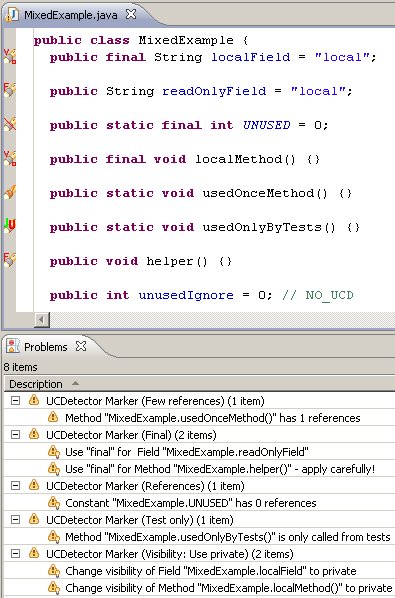
A first run of UCD results in a bunch of markers on code locations, where UCD thinks the code is unused. It also places markers on locations where the "visibility" of variables and methods could be improved.

The tool enables me to quickly find classes and methods with no references. I always do a double check with a "text find" on the whole project, to make sure the code is really not used. Because I'm using Spring, some of the classes are only referenced and used in the XML file. This type of reference is not detected by UCD, and it results in false positives. I annotate these locations with @SuppressWarnings("ucd"), which will stop UCD from marking them as unused code in the future.

In my opinion, Unnecessary Code Detector is a very valuable tool for the Java Developer. Give it a try!

Friday, November 26, 2010

Plug-ins for Eclipse

Eclipse is my favorite Java IDE (Integrated Development Environment). One of the best functionality offered by Eclipse, is the possibility of adding (free) third-party plug-ins, which makes Eclipse flexible, and customizable to satisfy your requirements. Here is a list of plug-ins I installed in Eclipse:

Subclipse
Integrate SVN in Eclipse with this tool. This tool makes it effortless to keep your project files in sync with your SVN repository.
http://subclipse.tigris.org/

PHPEclipse
If you PHP for development, then this tool is useful. It provides stuff like: syntax high-lighting, code-completion, and integrated manual.
http://www.phpeclipse.com

JSEclipse
If you use JavaScript, you can use this tool to make the coding experience better. It provides similar functionality like PHPEclipse, but for JavaScript instead of PHP.
http://www.interaktonline.com/products/eclipse/jseclipse/overview/

Checkstyle
This plug-in forces you to write Java code that adheres to a coding standard. Checkstyle also checks class design problems, duplicate code, and bugs.
http://checkstyle.sourceforge.net

Findbugs
This tool, well, finds bugs in your Java code. It uses static analysis on Java bytecode to detect bug patterns.
http://findbugs.sourceforge.net

UMLet
This is definitely my favorite tool to draw UML diagrams. Very easy to use, and it's free!
http://www.umlet.com

Sunday, October 17, 2010

Securing JAX-WS web services in Eclipse

In this tutorial, we're going to secure the web service created in previous blogposts. If you don't have done that already, please go through the previous two blogposts, because this blogpost will build on the web service created there. We're using container managed security to achieve security. The tutorial consists of three parts. In the first part, we will implement BASIC authentication. In the second part we extend BASIC authentication with Secure Socket Layer (SSL). In the third part, we replace BASIC authentication with mutual authentication using certificates.

PART 1: BASIC authentication

Steps:

  1. Create realm users
  2. Modify server application for BASIC authentication
  3. Modify client application for BASIC authentication

1. Create realm users
In this step we're creating users that are authorized to use the web service. The steps described here are only applicable for the Glassfish application server. I will describe the steps needed for the JBoss application server in a future blogpost.

First, make sure Glassfish is running, and go to the admin console or interface. Use the menu tree on the left to browse to: Security -> Realm -> file
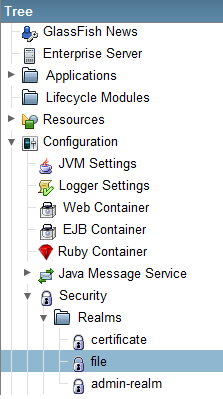


Now in the next screen, click on "Manage Users".
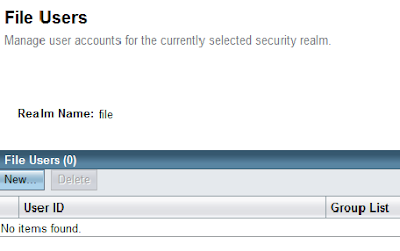


This will take you to the screen "File Users". Click on "New..." to create a new user. In this example, create an user "peter" in the group "wsusers". The password is "qwerty1".
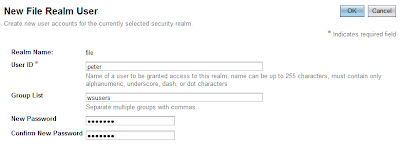


Finally, click "Finish". Now, we have completed creating an user in Glassfish.

2. Modify server application for BASIC authentication
In this step, we have to modify two files: web.xml and sun-web.xml. If you don't have these files, just create them under the WEB-INF directory. In the web.xml file, we protect the web service by adding: a security constraint, login configuration, and roles. To do this, we add the following code directly nested in <web-app>:

<!-- Security constraint for resource only accessible to role -->
<security-constraint>
<display-name>WebServiceSecurity</display-name>

<web-resource-collection>
<web-resource-name>Authorized users only</web-resource-name>
<url-pattern>/ExampleWSService</url-pattern>
<http-method>POST</http-method>
</web-resource-collection>

<auth-constraint>
<role-name>user</role-name>
</auth-constraint>

</security-constraint>

<!-- BASIC authorization -->
<login-config>
<auth-method>BASIC</auth-method>
</login-config>

<!-- Definition of role -->
<security-role>
<role-name>user</role-name>
</security-role>

In the file sun-web.xml, we map the user group created in the application server to the role "user". Put the following code directly under <sun-web-app>:

<security-role-mapping>
<role-name>user</role-name>
<group-name>wsusers</group-name>
</security-role-mapping>

At this point, you can deploy the application and test it with the web service client. If correct, a 404-authorization error will be displayed when the client tries to connect to the web service.

3. Modify client application for BASIC authentication
In this step, we're going to supply an username and password when connecting to a web service in the client. The altered start() method in the file WebServiceClient.java should look like this:

public void start() {
// This statement is not needed when run in container.
service = new ExampleWSService();
ExampleWS port = service.getExampleWSPort();

// Authentication
BindingProvider bindProv = (BindingProvider) port;
Map<String, Object> context = bindProv.getRequestContext();
context.put("javax.xml.ws.security.auth.username", "peter");
context.put("javax.xml.ws.security.auth.password", "qwerty1");

System.out.println(port.greet("Peter"));
System.out.println(port.multiply(3, 4));
}

If we run the client now, we notice that we can successfully connect to the web service without getting authorization errors.

PART 2: Implementing Secure Socket Layer (SSL)

Now, we continue to add Transport Level Security (TLS) using SSL to encrypt the transportation channel. This will prevent eavesdropping and tampering communication data between client and server.

Steps:

  1. Export server certificate from server keystore
  2. Create client truststore and import server certificate
  3. Modify server application for SSL
  4. Modify client application for SSL

1. Export server certificate from server keystore
Open a command prompt and navigate to the root directory of the client. Create a new directory called "server" with the command "mkdir server" and navigate into it. This will be our working directory when manipulating the server keystore/truststore. Copy the following files from the Glassfish_installation/domains/domain1/config directory to the newly created server directory: cacerts.jks (truststore) and keystore.jks (keystore).

Now, we can use the keytool to export the server certificate from the server keystore using the default store password "changeit":

keytool -export -alias s1as -keystore keystore.jks
-storepass changeit -file server.cer

The exported server certificate is now written to the file server.cer.

2. Create client truststore and import server certificate
The next step is to create the client truststore and import the server certificate to it. Create a "client" directory in the root directory of the client, and navigate to it using the command prompt. Now use the keytool to create the client truststore and import the server certificate:

keytool -import -v -trustcacerts -alias s1as -keypass changeit
-file ../server/server.cer -keystore client_cacerts.jks
-storepass changeit

When prompted to trust the certificate, type "yes" and press enter to accept.


3. Modify server application for SSL
Add the following code under the <security-constraint>-element in web.xml to enable SSL:

<user-data-constraint>
<transport-guarantee>CONFIDENTIAL</transport-guarantee>
</user-data-constraint>

When you run the client now, you'll get a 302-error, indicating that the resource has moved.

4. Modify client application for SSL
Edit ExampleWSService.java (generated by wsimport) and lookup the WSDL-URL in the code. Replace the URL with:

https://localhost:8181/webservice/ExampleWSService?wsdl

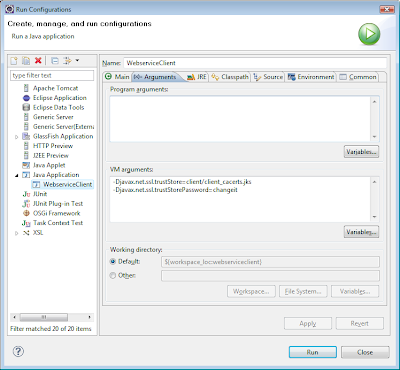
Save and use the following VM parameters to run the client:

-Djavax.net.ssl.trustStore=client/client_cacerts.jks
-Djavax.net.ssl.trustStorePassword=changeit

You can configure the VM parameters in Eclipse here: Run -> Run Configurations


PART 3: Mutual authentication

In the final part, we're replacing the BASIC authentication with mutual authentication with certificates.

Steps:

  1. Create client keystore
  2. Export client certificate
  3. Import client certificate into server truststore
  4. Modify server application for mutual authentication
  5. Modify client application for mutual authentication
  6. Configure Glassfish for mutual authentication


1. Create client keystore
Now, create a client keystore to store its own certificate.

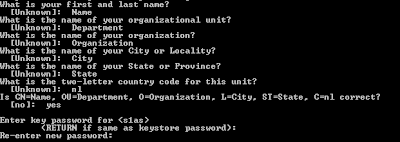
keytool -genkey -alias client -keypass changeit
-storepass changeit -keystore client_keystore.jks

Use the following values to answer questions when prompted:


2. Export client certificate
Navigate to the "client" directory with the command prompt. The client certificate is needed on the server side. So we need to export it from the client keystore using the following command:

keytool -export -alias client -keystore client_keystore.jks
-storepass changeit -file client.cer


3. Import client certificate into server truststore
Navigate to the "server" directory and import the client certificate with the command:

keytool -import -v -trustcacerts -alias client
-keystore cacerts.jks -keypass changeit
-file ../client/client.cer

Use the default password "changeit" when asked, and finally type "yes" to accept the certificate.

4. Modify server application for mutual authentication
The file web.xml has to be changed for mutual authentication configuration. Lookup the <auth-method>-element and replace BASIC with CLIENT-CERT.

The sun-web.xml file has also to be modified. Instead of mapping the role to a realm group, we have to map the role to a certificate with the <principal-name>-element:

<sun-web-app>
<security-role-mapping>
<role-name>user</role-name>
<!-- <group-name>wsusers</group-name> -->
<principal-name>CN=Name, OU=Department,
O=Organization, L=City, ST=State,
C=nl</principal-name>
</security-role-mapping>
</sun-web-app>


5. Modify client application for mutual authentication
The username and password we used in the client code for part 1 are not used anymore. So we can remove that part.

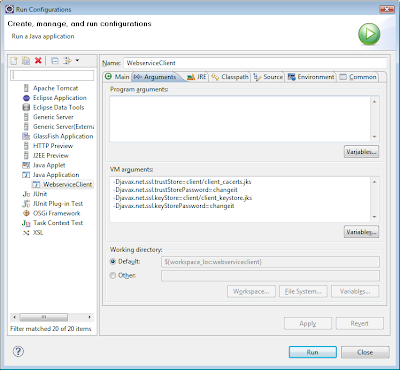
The client is now finished, and can be run with the following VM-settings:

-Djavax.net.ssl.keyStore=client/client_keystore.jks
-Djavax.net.ssl.keyStorePassword=changeit


6. Configure Glassfish for mutual authentication
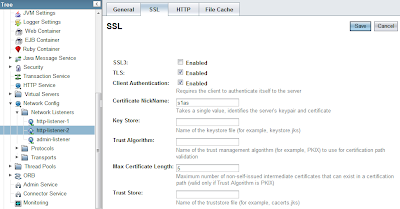
If you experience connection problems when using the client, you're probably using the default Glassfish installation. By default, mutual authentication is disabled. To enable mutual authentication, go to: Configuration -> Network Listeners -> http-listener-2. Click the SSL tab. Make sure "SSL3" is not checked. The checkboxes "TLS" and "Client Authentication" should be checked.


Everything should be working now. In a future blogpost, I will show you how to configure realm users for JBoss.

Friday, October 8, 2010

Web service client with JAX-WS in Eclipse

In this blogpost, I will use JAX-WS to show how easy it is to create a simple client that makes use of the web service we created in the previous blogpost. The client can be implemented in various ways, like a web application or an EJB. In both mentioned ways, you run the client in a Java container. Therefore, you can take advantage of the resource injection facility provided by the container. This means you can use annotations to automatically inject the web service object where needed. We start out by creating a standard client, which does not run in a container.

Let's get started by creating a standard Java project in Eclipse. When done, start up a command prompt and navigate it to the root directory of the newly created project. Use the wsimport command to generate the classes you need to access the web service. You need the URL of the WSDL for this to work. The following command generates the sources and classes, and place them in the default Eclipse directories.

wsimport -s src
-d bin
http://localhost:8080/webservice/ExampleWSService?wsdl

Now, create a new class, which acts as the client. An example client:

package com.javaeenotes;

import javax.xml.ws.WebServiceRef;


public class WebserviceClient {

// This annotation only has effect in a container.
@WebServiceRef(
wsdlLocation =
"http://127.0.0.1:8080/webservice/ExampleWSService?wsdl"
)
private static ExampleWSService service;

public static void main(String[] args) {
WebserviceClient wsc = new WebserviceClient();
wsc.start();
}

public void start() {
// This statement is not needed when run in container.
service = new ExampleWSService();
ExampleWS port = service.getExampleWSPort();
System.out.println(port.greet("Peter"));
System.out.println(port.multiply(3, 4));
}
}

The resource injection annotation is not necessary here, because the client does not run in a container. I left it here to show how to use annotation to inject the resource into your class when run in a container.

Sunday, October 3, 2010

Web service with JAX-WS in Eclipse

In this tutorial, I'll show you how to use JAX-WS to build a web service in Eclipse. JAX-WS stands for Java API for XML Web Services. You can use it to build web services and clients that communicate using XML messages. We are not using the built-in web service generation tool provided by Eclipse. How to build a sample client will be explained in a future blog post.

The basic steps for building a web service:

  1. Code the implementation class
  2. Annotate the class
  3. Use wsgen to generate web service artifacts
  4. Deploy in Glassfish from Eclipse

1. Code the implementation class

First create a dynamic web project in Eclipse. I called my project webservice, but you call your project anything you like. Make sure the target runtime is Glassfish, and select Minimal Configuration in the configuration screen.


In the next screen, accept the default output folder or choose a custom one. Memorize the output folder, because we need this when we generate the web service artifacts.


You don't have to select the last checkbox to auto generate the web.xml deployment descriptor, but you'll need it when your application is also a web application.


Click finish, and your project is ready to use.
Create a new class in the newly created project. This will be the implementation class of the web service. I called mine ExampleWS.


2. Annotate the class

Now it's time to complete the class and use JAX-WS annotation to make it a valid web service.

package com.javaeenotes;

import javax.jws.WebMethod;
import javax.jws.WebService;

@WebService
public class ExampleWS {

@WebMethod
public int sum(int a, int b) {
return a + b;
}

@WebMethod
public int multiply(int a, int b) {
return a * b;
}

@WebMethod
public String greet(String name) {
return "Hello " + name + "!";
}
}

3. Use wsgen to generate web service artifacts

Start a command prompt and navigate to the root of the project directory. Make sure the JDK is in your PATH, or else you can't execute the wsgen command. Create a wsdl directory in WebContent/WEB-INF/ or else wsgen will complain. Use the wsgen command to generate the artifacts like this:

wsgen -classpath build/classes/ -wsdl
-r WebContent/WEB-INF/wsdl -s src
-d build/classes/ com.javaeenotes.ExampleWS

This command will generate the source, class files, and WSDL file for the web service implemented as com.javaeenotes.ExampleWS. When wsgen complains about not finding the class, you have to build the project first. When the command is successful, you can refresh the project and you'll find the artifacts in your project tree.

The generated WSDL-file needs some editting, before you can use it. Open the WSDL-file and search for REPLACE_WITH_ACTUAL_URL. Replace this string with the web service URL: http://127.0.0.1:8080/webservice/ExampleWSService, and save the file.

4. Deploy in Glassfish from Eclipse

I assume you have Glassfish integrated in Eclipse, or else you have to build a WAR-file using ANT and manually deploy it into Glassfish. There is a blog post about integrating Glassfish into Eclipse. You can use the search engine to find it.

Deploy the project in Glassfish by right-clicking the project, click Run As, and finally Run on Server. Select the Glassfish server in the selection screen, and complete this step. When the configuration is finished, Eclipse tries to open a web page, which fails with a 404 error. Don't worry, this is normal, because we just created a web application without pages. Our project contains only a web service.

We can test the newly created web service by using SOAP-UI or the integrated Web Services Explorer in Eclipse. To use the Web Sercice Explorer in Eclipse, browse to the WSDL-file, right-click on it, select Web Services, and click on Test with Web Services Explorer. This will present you the web services test screen, which is pretty easy to use.

Sunday, September 19, 2010

Glassfish integration in Eclipse 3.6 (Helios)

Developing in Eclipse for Glassfish is easier when Glassfish is integrated into the IDE. This way, it's possible to right-click the project to deploy the selected project automatically in Glassfish.

In this tutorial, I will show you how to integrate a local Glassfish installation into Eclipse 3.6 (Helios). Before we start, I assume you've installed: Eclipse 3.6, the Java RE, the Java JDK, and the Java EE SDK. Install Java RE and JDK first, before you install the Java SDK.

The first step is to start up Eclipse and locate the servers tab, which is found at the bottom of the screen for default installations.


Now, right-click somewhere in the tab, select "new", and then "server". The following screen will pop up, with the default server adapters.


The server adapter for Glassfish is not included by default. So we have to click "Download additional server adapters" to download the server adapter for Glassfish. A screen will pop up with a selection of server adapters. Select "Oracle Glassfish Server Tools", which is the adapter we're looking for.


Click "next" to download and install the server adapter. Restart Eclipse, when the installation is finished. After the restart, the Glassfish server adapter will show up in the list from the servers tab.


Select it, and click next. The next screen lets you configure the server adapter. Select a working JRE environment and select the installation path of your Glassfish application server.


Click next to go to the next screen. If you have set an administrator password during the installation of Glassfish, you have to fill in this password in the form. Otherwise, use the default values and click next to proceed.


The next screen lets you select existing projects to be added to the newly configured server adapter. The screen is empty in this tutorial, because we're using a fresh install.


When the configuration is succesful, you'll see the server adapter in the servers tab. Now, you can start using it by right-clicking on the server.


From this menu, you can:

  • start/stop the server
  • add/remove new projects
  • publish/unpublish projects
  • view the administration console
  • update Glassfish

Have fun playing with Glassfish in Eclipse!

Monday, May 3, 2010

Version control with GIT on Windows

GIT is a Bitkeeper inspired version control system created by Linus Torvalds. It features fast distributed, decentralized version control. Originally developed for Linux, the application is now also available to Windows under the name MsysGIT.

If you don't like the standard integrated Windows Explorer interface, you can also download the interface by Tortoise here: http://code.google.com/p/tortoisegit. It still needs MsysGIT to work.

Quick reference of commands I regularly use:

Basic commands:
git init - place current directory under version control
git add . - stage all files in the current directory for commit
git commit - commit all staged files
git commit -a - commit all files (including unstaged ones)
git log - view history of changes
git diff - show changes between commits

Clone commands:
git clone <path_to_existing_repos> <clone_name> - clone an existing repository
git pull - fetch latest changes from master branch
git push - push latest changes to master branch
git pull <existing clone> [<branch>] - fetch latest changes from clone
git push <existing clone> [<branch>] - push latest changes to clone


Branche commands:
git branch - list all branches
git branch <branch_name> - create a new branch in current repository
git checkout <branch_name> - checkout current branch in current repository
git merge <branch_name> - merge branch into master branch

There is also a GIT plugin available for Eclipse:
http://www.eclipse.org/egit/
http://wiki.eclipse.org/EGit/User_Guide

Next, I will describe a real life scenario of a team working on the same project.

Installation
John starts a new project and creates a local repository from his working directory:

cd project
git init
git add .
git commit

Now he wants to share this project with his team members. To do that, John creates a central empty "bare" project that is going to hold all the project files:

cd <path_to_central_directory>
mkdir project
cd project
git init --bare

Once the central repository is ready, John pushes the content from his local working directory to the central repository:

git remote add origin <path_to_central_directory>/project
git push origin master

Now Karen can join this project by cloning the central repository to her local directory:

git clone <path_to_central_directory>/project

She can now edit some files and push the changes to the central repository:

git add file
git commit
git push [origin master]

John can fetch or pull the changes from the central repository to merge them with his own repository with:

git fetch
git merge HEAD

or

git pull origin master

Now, John wants to start a new version in a branch:

git branch new_version

The current checked out branch can be viewed using this command:

git branch

John can start editting the new branch by checking out the new branch by using:

git checkout new_version

When John is done, he can merge the changes in the new branch to the master with:

git merge new_version

References:

Wednesday, April 14, 2010

JAR search engine

The very useful website findJAR.com is a JAR search engine that helps Java developers to find JAR libraries containing required Java classes. The search engine can be integrated into Eclipse and Firefox with available plugins.

http://www.findjar.com

Sunday, April 4, 2010

Developing EJB 3.0 in Eclipse

This tutorial will show you how to develop a Java EE Session Bean in Eclipse, and deploy it in on an application server.

Before you begin, you need to have have both the Java Development Kit (JDK) and an application server installed on localhost. In this example I used Glassfish, which has an autodeploy directory. When an EJB jar file is dropped into the autodeploy directory, the application server automatically deploys it. To download the JDK, click here. To download Glassfish, click here.

Step 1: Create new EJB project


Let Eclipse generate the EJB-deployment descriptor.


Include two Java EE jars (appserv-rt.jar and javaee.jar) which is needed to compile the beans. You can find the jars in the lib directory of your Glassfish installation directory. Add the jars to your project build path (Right-click on project, then click Build Path).


Step 3: Create the EJB Stateless Session Bean


When you finish this step, you will find three skeleton class files of your bean. Make sure they look like the code examples below:

ExampleSessionBean source:

package example;

import javax.ejb.Stateless;

@Stateless(name = "ExampleSessionBean",
mappedName = "ejb/ExampleSessionBean")
public class ExampleSessionBean implements
ExampleSessionBeanRemote, ExampleSessionBeanLocal {

public ExampleSessionBean() {
;
}

public int multiply(int a, int b) {
return a * b;
}

public int add(int a, int b) {
return a + b;
}

public int substract(int a, int b) {
return a - b;
}
}


ExampleSessionBeanLocal source:

package example;
import javax.ejb.Local;

@Local
public interface ExampleSessionBeanLocal {
public int multiply(int a, int b);

public int add(int a, int b);

public int substract(int a, int b);
}


ExampleSessionBeanRemote source:

package example;
import javax.ejb.Remote;

@Remote
public interface ExampleSessionBeanRemote {
public int multiply(int a, int b);

public int add(int a, int b);

public int substract(int a, int b);
}


Step 7: Export project as EJB jar

To compile the EJB-jar file, we select the project and do a right-click. Now select Export and then EJB JAR file. Now fill in the next screens:


Step 8: Deploy the EJB-jar
Now drag and drop the exported EJB-jar file to the autodeploy directory of Glassfish. The bean is now ready for use.

Step 9: Create remote test client

The step described next is optional. In this step we create a test client, which is run within Eclipse to test the remote EJB interface we created.

import javax.naming.InitialContext;

import example.ExampleSessionBeanRemote;

public class Main {
public void runTest() throws Exception {
InitialContext ctx = new InitialContext();
ExampleSessionBeanRemote bean =
(ExampleSessionBeanRemote) ctx
.lookup("ejb/ExampleSessionBean");
int result = bean.multiply(3, 4);
System.out.println(result);
}

public static void main(String[] args) {
Main cli = new Main();
try {
cli.runTest();
} catch (Exception e) {
e.printStackTrace();
}
}
}


Compile and run within Eclipse to view the result in the Console tab.