Showing posts with label webservices. Show all posts

Sunday, March 13, 2011

Thread scoped JAX-WS webservices

Like Servlets, the container uses one instance of a web service class to handle incoming web service requests, which is the default behavior. Ofcourse, you can make the web service thread-safe by adding the synchronized method to the exposed methods like the following code:

@WebService
public class ExampleWS {
public synchronized void doSomething() {
;
}

public synchronized void doSomethingElse() {
;
}
}

By doing this, you eliminate the possibility of parallel or concurrent handling of incoming requests. In order to support concurrent processing, you can mark the web service class as thread scoped by using the @ThreadScope annotation.

import org.jvnet.jax_ws_commons.thread_scope.ThreadScope;

@WebService
@ThreadScope
public class ExampleWS {
public synchronized void doSomething() {
;
}

public synchronized void doSomethingElse() {
;
}
}

The added annotation will force the container to create a new instance of the web service class for every thread (ie. every request). Instances will not be shared by threads.

Monday, February 14, 2011

When @SchemaValidation in JAX-WS web services fails

I'm currently developing web services in an Oracle WebLogic environment. To enable schema validation on the web service, one only has to use the @SchemaValidation annotation in the web service class. Like this:


import com.sun.xml.ws.developer.SchemaValidation;

@WebService(...)
@SchemaValidation
public class WebService implements WebServiceInterface {
...
}


Unfortunately, that doesn't work for me. I get this error when I try to deploy my application:


Caused by: javax.xml.ws.WebServiceException:
Annotation@com.sun.xml.internal.ws.developer.SchemaValidation
(handler=class com.sun.xml.internal.ws.server.DraconianValidationErrorHandler)
is not recognizable,
atleast one constructor of class com.sun.xml.internal.ws.developer.SchemaValidationFeature
should be marked with @FeatureConstructor


I also tried creating my own validator to use in the annotation (@SchemaValidation(handler = ExampleValidationHandler.class)):


import org.xml.sax.SAXParseException;

import com.sun.xml.internal.ws.developer.ValidationErrorHandler;

public class ExampleValidationHandler extends ValidationErrorHandler {

public void warning(SAXParseException exception) {
;
}

public void error(SAXParseException exception) {
;
}

public void fatalError(SAXParseException exception) {
;
}
}


Then I enabled schema validation explicitly in the Oracle WebLogic web services deployment descriptor: weblogic-webservices.xml.


<?xml version="1.0" encoding="UTF-8"?>
<weblogic-webservices
xmlns="http://xmlns.oracle.com/weblogic/weblogic-webservices"
xmlns:xsi="http://www.w3.org/2001/XMLSchema-instance"
xsi:schemaLocation="http://xmlns.oracle.com/weblogic/weblogic-webservices http://xmlns.oracle.com/weblogic/weblogic-webservices/1.1/weblogic-webservices.xsd">

<webservice-description>
<webservice-description-name>ExampleWSService</webservice-description-name>
<webservice-type>JAXWS</webservice-type>
<port-component>
<port-component-name>ExampleWSService</port-component-name>
<validate-request>true</validate-request>
<reliability-config>
<inactivity-timeout>P0DT600S</inactivity-timeout>
<base-retransmission-interval>P0DT3S</base-retransmission-interval>
<retransmission-exponential-backoff>true</retransmission-exponential-backoff>
<acknowledgement-interval>P0DT3S</acknowledgement-interval>
<sequence-expiration>P1D</sequence-expiration>
<buffer-retry-count>3</buffer-retry-count>
<buffer-retry-delay>P0DT5S</buffer-retry-delay>
</reliability-config>
</port-component>
</webservice-description>
</weblogic-webservices>


Unfortunately, that didn't work either. Google shows me three other developers with the same problem, but there is no working solution for me, and for them. So, another approach is needed to enable schema validation on incoming messages.

The solution presented in this blog post makes use of web service handlers. A web service handler is like an intercepting filter, which enables you to intercept incoming and outgoing messages, before they are passed on to the (external) system. The steps needed for this solution:

1. Create web service handler class
2. Define handler chain in XML-descriptor
3. Use annotation in web service class

1. Create web service handler class

There are two types of web service handlers:
- LogicalHandler
- SOAPHandler

The LogicalHandler provides access to the logical message, without protocol details like: SOAP envelopes. The SOAPHandler provides access to SOAP protocol details. For the purpose of message validation, the LogicalHandler is a better choice.


package com.javaeenotes;

import java.io.ByteArrayInputStream;
import java.io.IOException;
import java.io.StringWriter;
import java.net.MalformedURLException;
import java.net.URL;

import javax.xml.XMLConstants;
import javax.xml.parsers.DocumentBuilder;
import javax.xml.parsers.DocumentBuilderFactory;
import javax.xml.parsers.ParserConfigurationException;
import javax.xml.transform.Source;
import javax.xml.transform.Transformer;
import javax.xml.transform.TransformerConfigurationException;
import javax.xml.transform.TransformerException;
import javax.xml.transform.TransformerFactory;
import javax.xml.transform.TransformerFactoryConfigurationError;
import javax.xml.transform.dom.DOMSource;
import javax.xml.transform.stream.StreamResult;
import javax.xml.validation.Schema;
import javax.xml.validation.SchemaFactory;
import javax.xml.ws.LogicalMessage;
import javax.xml.ws.handler.LogicalHandler;
import javax.xml.ws.handler.LogicalMessageContext;
import javax.xml.ws.handler.MessageContext;

import org.w3c.dom.Document;
import org.xml.sax.SAXException;

public class ValidationHandler implements LogicalHandler<LogicalMessageContext> {
private String schemaUrl = "http://127.0.0.1:8080/webservice/schema.xsd";

@Override
public boolean handleMessage(LogicalMessageContext context) {
Boolean isOutBound = (Boolean) context
.get(MessageContext.MESSAGE_OUTBOUND_PROPERTY);

if (isOutBound) {
return true;
}

LogicalMessage lm = context.getMessage();
Source payload = lm.getPayload();
StreamResult res = new StreamResult(new StringWriter());
String message = "";

try {
Transformer trans;
trans = TransformerFactory.newInstance().newTransformer();
trans.transform(payload, res);
message = res.getWriter().toString();
// Validate
validate(message, schemaUrl);
} catch (TransformerConfigurationException e) {
// When Source payload Transformer object could not be obtained.
throw new WebServiceException(e);
} catch (TransformerFactoryConfigurationError e) {
// When Source payload Transformer object could not be obtained.
throw new WebServiceException(e);
} catch (TransformerException e) {
// When Source payload could not be transformed to String.
throw new WebServiceException(e);
} catch (MalformedURLException e) {
// When URL to schema is invalid.
throw new WebServiceException(e);
} catch (ParserConfigurationException e) {
// When parser needed for validation could not be obtained.
throw new WebServiceException(e);
} catch (IOException e) {
// When something is wrong with IO.
throw new WebServiceException(e);
} catch (SAXException e) {
// When XSD-schema validation fails.
throw new WebServiceException(e);
}

return true;
}

private void validate(String xml, String schemaUrl)
throws ParserConfigurationException, IOException,
MalformedURLException, SAXException {

DocumentBuilder parser = null;
Document document = null;
DocumentBuilderFactory dbf = DocumentBuilderFactory.newInstance();
dbf.setNamespaceAware(true);
parser = dbf.newDocumentBuilder();

byte bytes[] = xml.getBytes();
document = parser.parse(new ByteArrayInputStream(bytes));
SchemaFactory factory = SchemaFactory
.newInstance(XMLConstants.W3C_XML_SCHEMA_NS_URI);

Schema schema = null;
schema = factory.newSchema(new URL(schemaUrl));
javax.xml.validation.Validator validator = schema.newValidator();
validator.validate(new DOMSource(document));
}

@Override
public boolean handleFault(LogicalMessageContext context) {
return true;
}

@Override
public void close(MessageContext context) {
;
}

}


It is important to note that the payload must be defined in an XSD-schema. A definition in a WSDL file cannot be used. Use the boolean property: MessageContext.MESSAGE_OUTBOUND_PROPERTY to differentiate between out-bound or in-bound messages. Throw a WebServiceException when something goes wrong.

2. Define handler chain in XML-descriptor

Now, create a handler chain XML-descriptor file, which refers to the handler created in the previous step. In this example, I named the file handlers.xml and placed it in the same directory as the handler. The location of the file is important in the last step.


<?xml version="1.0" encoding="UTF-8"?>
<handler-chains xmlns="http://java.sun.com/xml/ns/javaee"
xmlns:xsi="http://www.w3.org/2001/XMLSchema-instance"
xsi:schemaLocation="http://java.sun.com/xml/ns/javaee http://java.sun.com/xml/ns/javaee/javaee_web_services_metadata_handler_2_0.xsd">
<handler-chain>
<handler>
<handler-name>ValidationHandler</handler-name>
<handler-class>com.javaeenotes.ValidationHandler</handler-class>
</handler>
</handler-chain>
</handler-chains>


3. Use annotation in web service class

The final step is to use the @HandlerChain annotation in the web service class. The file parameter must be a relative path to the XML-descriptor file from the annotated class file or an absolute URL.


package com.javaeenotes;

import javax.jws.HandlerChain;
import javax.jws.WebService;

import com.javaeenotes.ws.ExampleWS;
//import com.sun.xml.ws.developer.SchemaValidation;

@WebService(name = "ERSService",
targetNamespace = "http://javaeenotes.com/",
serviceName = "ExampleWSService",
portName = "ExampleWSPort",
endpointInterface = "com.javaeenotes.ws.ExampleWS",
wsdlLocation = "WEB-INF/wsdl/ExampleWSService.wsdl")
//@SchemaValidation
@HandlerChain(file = "handlers.xml")
public class WsImplementation implements ExampleWS {

@Override
public int sum(int arg0, int arg1) {
return 0;
}

@Override
public String greet(String arg0) {
return null;
}

@Override
public int multiply(int arg0, int arg1) {
return 0;
}
}

Tuesday, February 8, 2011

Building a contract-first webservice with JAX-WS

In this tutorial, we'll be building a webservice contract-first. This means we build the webservice based on a contract that already exists. This contract is the WSDL file that describes the webservice formally.

The first step is to generate JAX-WS classes using wsgen that comes with the Java EE SDK. You can find the executable in your SDK/Glassfish installation directory. We'll be using the WSDL file of an earlier blogpost. Save this file as: ExampleWSService.wsdl. If you're using Eclipse, you might want to save the files in WebContent/WEB-INF/wsdl in the project directory.


<?xml version="1.0" encoding="UTF-8" standalone="yes"?>
<definitions targetNamespace="http://javaeenotes.com/"
name="ExampleWSService"
xmlns="http://schemas.xmlsoap.org/wsdl/"
xmlns:tns="http://javaeenotes.com/"
xmlns:xsd="http://www.w3.org/2001/XMLSchema"
xmlns:soap="http://schemas.xmlsoap.org/wsdl/soap/">
<types>
<xsd:schema>
<xsd:import namespace="http://javaeenotes.com/" schemaLocation="ExampleWSService.xsd"/>
</xsd:schema>
</types>
<message name="sum">
<part name="parameters" element="tns:sum"/>
</message>
<message name="sumResponse">
<part name="parameters" element="tns:sumResponse"/>
</message>
<message name="greet">
<part name="parameters" element="tns:greet"/>
</message>
<message name="greetResponse">
<part name="parameters" element="tns:greetResponse"/>
</message>
<message name="multiply">
<part name="parameters" element="tns:multiply"/>
</message>
<message name="multiplyResponse">
<part name="parameters" element="tns:multiplyResponse"/>
</message>
<portType name="ExampleWS">
<operation name="sum">
<input message="tns:sum"/>
<output message="tns:sumResponse"/>
</operation>
<operation name="greet">
<input message="tns:greet"/>
<output message="tns:greetResponse"/>
</operation>
<operation name="multiply">
<input message="tns:multiply"/>
<output message="tns:multiplyResponse"/>
</operation>
</portType>
<binding name="ExampleWSPortBinding" type="tns:ExampleWS">
<soap:binding transport="http://schemas.xmlsoap.org/soap/http" style="document"/>
<operation name="sum">
<soap:operation soapAction=""/>
<input>
<soap:body use="literal"/>
</input>
<output>
<soap:body use="literal"/>
</output>
</operation>
<operation name="greet">
<soap:operation soapAction=""/>
<input>
<soap:body use="literal"/>
</input>
<output>
<soap:body use="literal"/>
</output>
</operation>
<operation name="multiply">
<soap:operation soapAction=""/>
<input>
<soap:body use="literal"/>
</input>
<output>
<soap:body use="literal"/>
</output>
</operation>
</binding>
<service name="ExampleWSService">
<port name="ExampleWSPort" binding="tns:ExampleWSPortBinding">
<soap:address location="http://127.0.0.1:8080/webservice/ExampleWSService"/>
</port>
</service>
</definitions>


This WSDL file imports an XSD file. Make sure this is placed in the same directory as the WSDL file, and name it ExampleWSService.xsd. Also update the location/URL in the WSDL file. This example assumes the application is called webservice and the service name is ExampleWSService.

<?xml version="1.0" encoding="UTF-8" standalone="yes"?>
<xs:schema version="1.0"
targetNamespace="http://javaeenotes.com/"
xmlns:tns="http://javaeenotes.com/"
xmlns:xs="http://www.w3.org/2001/XMLSchema">

<xs:element name="greet" type="tns:greet"/>

<xs:element name="greetResponse" type="tns:greetResponse"/>

<xs:element name="multiply" type="tns:multiply"/>

<xs:element name="multiplyResponse" type="tns:multiplyResponse"/>

<xs:element name="sum" type="tns:sum"/>

<xs:element name="sumResponse" type="tns:sumResponse"/>

<xs:complexType name="greet">
<xs:sequence>
<xs:element name="arg0" type="xs:string" minOccurs="0"/>
</xs:sequence>
</xs:complexType>

<xs:complexType name="greetResponse">
<xs:sequence>
<xs:element name="return" type="xs:string" minOccurs="0"/>
</xs:sequence>
</xs:complexType>

<xs:complexType name="sum">
<xs:sequence>
<xs:element name="arg0" type="xs:int"/>
<xs:element name="arg1" type="xs:int"/>
</xs:sequence>
</xs:complexType>

<xs:complexType name="sumResponse">
<xs:sequence>
<xs:element name="return" type="xs:int"/>
</xs:sequence>
</xs:complexType>

<xs:complexType name="multiply">
<xs:sequence>
<xs:element name="arg0" type="xs:int"/>
<xs:element name="arg1" type="xs:int"/>
</xs:sequence>
</xs:complexType>

<xs:complexType name="multiplyResponse">
<xs:sequence>
<xs:element name="return" type="xs:int"/>
</xs:sequence>
</xs:complexType>
</xs:schema>


Now use the wsgen command to generate the server stubs. I generally put the complete command in a Windows batch file, so I can easily rerun the command in the future if necessary. Now, execute the following command:

wsimport -p com.javaeenotes.ws -d build/classes -s src WebContent/WEB-INF/wsdl/ExampleWSService.wsdl


This will generate all classes needed to setup the webservice. Next is to create a class that implements the webservice.


package com.javaeenotes;

import javax.jws.WebService;

import com.javaeenotes.ws.ExampleWS;

@WebService(name = "ERSService",
targetNamespace = "http://javaeenotes.com/",
serviceName = "ExampleWSService",
portName = "ExampleWSPort",
endpointInterface = "com.javaeenotes.ws.ExampleWS",
wsdlLocation = "WEB-INF/wsdl/ExampleWSService.wsdl")
public class WsImplementation implements ExampleWS {

@Override
public int sum(int arg0, int arg1) {
return 0;
}

@Override
public String greet(String arg0) {
return null;
}

@Override
public int multiply(int arg0, int arg1) {
return 0;
}
}


This class implements the webservice interface we generated from the WSDL file. Using simple annotations, we can easily deploy it without editting any deployment descriptors. Nothing more is needed for successful deployment. If you used the default URL in the WSDL file, you can now reach the webservice using this URL:

http://127.0.0.1:8080/webservice/ExampleWSService?wsdl

I recommend SOAP-UI to test the webservice.

Saturday, February 5, 2011

RESTful webservices using JAX-RS

This tutorial demonstrates how RESTful services are created using JAX-RS. We'll be using Glassfish as our primary application server. This tutorial is limited to reading representational objects. For implementation information about CRUD-operations and REST, I recommend the following online book.

The tutorial consists of the following steps:

1. Define URLs
2. Define data format
3. Configure JAX-RS in web.xml
4. Create REST POJO's
5. Test application with URLs


1. Define URLs

The first step is define the URLs we'll be using in accessing the REST objects. For this example, we define four relative URLs:

1. All departments: /departments/
2. Department by ID: /departments/{id}
3. All employees: /employees/
4. Employee by ID: /employees/{id}

The {id} is the ID parameter, which should be an integer number.


2. Define data format

In this step we have to choose how we want to format the object for the client. Commonly, this will be either XML or JSON. The latter one is definitely preferred if AJAX is handling the output. But for this tutorial, we'll be using XML.


<department id="12345">
<link rel="self" href="/departments/12345" />
<name>Solutions Development</name>
</department>


<employee id="1580">
<link rel="self" href="/employees/1580" />
<firstName>Gin Lung</firstName>
<lastName>Cheng</lastName>
<department id="12345">
<link rel="self" href="/departments/12345" />
</department>
</employee>


3. Configure JAX-RS in web.xml

Now, we need to configure the application server to support RESTful services by putting the following XML-code in the web.xml file inside the <web-app>-element:


<servlet>
<servlet-name>Jersey Web Application</servlet-name>
<servlet-class>com.sun.jersey.spi.container.servlet.ServletContainer</servlet-class>
<load-on-startup>1</load-on-startup>
</servlet>

<servlet-mapping>
<servlet-name>Jersey Web Application</servlet-name>
<url-pattern>/rs/*</url-pattern>
</servlet-mapping>


This tells our application server that we want URLs that start with /rs/ are handled by the JAX-RS Servlet.


4. Create REST POJO's

Create the POJO's that contain the methods behind the URLs. For demonstration purposes, the output is hardcoded. Normally, content is retrieved from a database, and converted to XML with JAX-B.

DepartmentService.java

package com.javaeenotes;

import javax.ws.rs.GET;
import javax.ws.rs.Path;
import javax.ws.rs.PathParam;
import javax.ws.rs.Produces;

@Path("/departments")
public class DepartmentService {

@GET
@Produces("application/xml")
public String showDepartments() {
// Return all departments.
return "<department id=\"12345\">"
+ "<link rel=\"self\" href=\"/departments/12345\" />"
+ "<name>Solutions Development</name>"
+ "</department>";
}

@Path("{id}")
@GET
@Produces("application/xml")
public String showDepartment(@PathParam("id") int id) {
// Return department by ID.
return "<department id=\"" + id + "\">"
+ "<link rel=\"self\" href=\"/departments/" + id + "\" />"
+ "<name>Solutions Development</name>"
+ "</department>";
}
}


EmployeeService.java

package com.javaeenotes;

import javax.ws.rs.GET;
import javax.ws.rs.Path;
import javax.ws.rs.PathParam;
import javax.ws.rs.Produces;

@Path("/employees")
public class EmployeeService {

@GET
@Produces("application/xml")
public String showEmployees() {
// Return all employees.
return "<employee id=\"1580\">"
+ "<link rel=\"self\" href=\"/employees/1580\" />"
+ "<firstName>Gin Lung</firstName>"
+ "<lastName>Cheng</lastName>"
+ "<department id=\"12345\">"
+ "<link rel=\"self\" href=\"/departments/12345\" />"
+ "</department>"
+ "</employee>";
}

@Path("{id}")
@GET
@Produces("application/xml")
public String showEmployee(@PathParam("id") int id) {
// Return employee by ID.
return "<employee id=\"" + id + "\">"
+ "<link rel=\"self\" href=\"/employees/" + id + "\" />"
+ "<firstName>Gin Lung</firstName>"
+ "<lastName>Cheng</lastName>"
+ "<department id=\"12345\">"
+ "<link rel=\"self\" href=\"/departments/12345\" />"
+ "</department>"
+ "</employee>";
}
}


5. Test application with URLs
If you deployed your application on a default install of Glassfish on your computer, the objects can be retrieved using the following URLs:

http://localhost:8080/restfulservices/rs/departments
http://localhost:8080/restfulservices/rs/departments/12345
http://localhost:8080/restfulservices/rs/employees
http://localhost:8080/restfulservices/rs/employees/1580

If you use Firefox to do this, remember that Firefox will render XML-tags invisible. Try to view the source of the page.

Thursday, November 11, 2010

Retrieve remote web service client host and IP

If you've created a web service, and you want to find out what the host or IP-address of the remote client is? The following code will be useful.

@WebService
public class WebService {
@Resource
WebServiceContext wsc;

@WebMethod
public String webMethod() {
MessageContext mc = wsc.getMessageContext();
HttpServletRequest req = (HttpServletRequest)
mc.get(MessageContext.SERVLET_REQUEST);
return "Client: " +
req.getRemoteHost() + " (" +
req.getRemoteAddr() + ").";
}
}

The code above will return the host and IP-address of the remote web service client back to the client.

Sunday, October 17, 2010

Securing JAX-WS web services in Eclipse

In this tutorial, we're going to secure the web service created in previous blogposts. If you don't have done that already, please go through the previous two blogposts, because this blogpost will build on the web service created there. We're using container managed security to achieve security. The tutorial consists of three parts. In the first part, we will implement BASIC authentication. In the second part we extend BASIC authentication with Secure Socket Layer (SSL). In the third part, we replace BASIC authentication with mutual authentication using certificates.

PART 1: BASIC authentication

Steps:

  1. Create realm users
  2. Modify server application for BASIC authentication
  3. Modify client application for BASIC authentication

1. Create realm users
In this step we're creating users that are authorized to use the web service. The steps described here are only applicable for the Glassfish application server. I will describe the steps needed for the JBoss application server in a future blogpost.

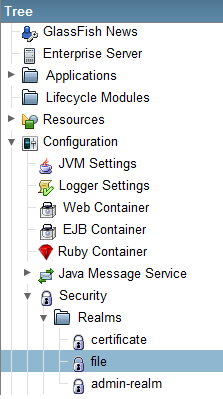
First, make sure Glassfish is running, and go to the admin console or interface. Use the menu tree on the left to browse to: Security -> Realm -> file


Now in the next screen, click on "Manage Users".
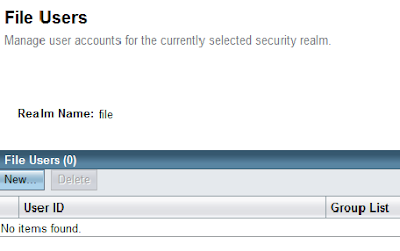


This will take you to the screen "File Users". Click on "New..." to create a new user. In this example, create an user "peter" in the group "wsusers". The password is "qwerty1".
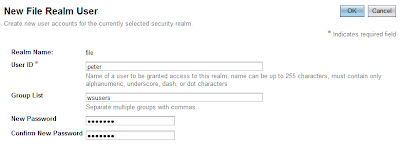


Finally, click "Finish". Now, we have completed creating an user in Glassfish.

2. Modify server application for BASIC authentication
In this step, we have to modify two files: web.xml and sun-web.xml. If you don't have these files, just create them under the WEB-INF directory. In the web.xml file, we protect the web service by adding: a security constraint, login configuration, and roles. To do this, we add the following code directly nested in <web-app>:

<!-- Security constraint for resource only accessible to role -->
<security-constraint>
<display-name>WebServiceSecurity</display-name>

<web-resource-collection>
<web-resource-name>Authorized users only</web-resource-name>
<url-pattern>/ExampleWSService</url-pattern>
<http-method>POST</http-method>
</web-resource-collection>

<auth-constraint>
<role-name>user</role-name>
</auth-constraint>

</security-constraint>

<!-- BASIC authorization -->
<login-config>
<auth-method>BASIC</auth-method>
</login-config>

<!-- Definition of role -->
<security-role>
<role-name>user</role-name>
</security-role>

In the file sun-web.xml, we map the user group created in the application server to the role "user". Put the following code directly under <sun-web-app>:

<security-role-mapping>
<role-name>user</role-name>
<group-name>wsusers</group-name>
</security-role-mapping>

At this point, you can deploy the application and test it with the web service client. If correct, a 404-authorization error will be displayed when the client tries to connect to the web service.

3. Modify client application for BASIC authentication
In this step, we're going to supply an username and password when connecting to a web service in the client. The altered start() method in the file WebServiceClient.java should look like this:

public void start() {
// This statement is not needed when run in container.
service = new ExampleWSService();
ExampleWS port = service.getExampleWSPort();

// Authentication
BindingProvider bindProv = (BindingProvider) port;
Map<String, Object> context = bindProv.getRequestContext();
context.put("javax.xml.ws.security.auth.username", "peter");
context.put("javax.xml.ws.security.auth.password", "qwerty1");

System.out.println(port.greet("Peter"));
System.out.println(port.multiply(3, 4));
}

If we run the client now, we notice that we can successfully connect to the web service without getting authorization errors.

PART 2: Implementing Secure Socket Layer (SSL)

Now, we continue to add Transport Level Security (TLS) using SSL to encrypt the transportation channel. This will prevent eavesdropping and tampering communication data between client and server.

Steps:

  1. Export server certificate from server keystore
  2. Create client truststore and import server certificate
  3. Modify server application for SSL
  4. Modify client application for SSL

1. Export server certificate from server keystore
Open a command prompt and navigate to the root directory of the client. Create a new directory called "server" with the command "mkdir server" and navigate into it. This will be our working directory when manipulating the server keystore/truststore. Copy the following files from the Glassfish_installation/domains/domain1/config directory to the newly created server directory: cacerts.jks (truststore) and keystore.jks (keystore).

Now, we can use the keytool to export the server certificate from the server keystore using the default store password "changeit":

keytool -export -alias s1as -keystore keystore.jks
-storepass changeit -file server.cer

The exported server certificate is now written to the file server.cer.

2. Create client truststore and import server certificate
The next step is to create the client truststore and import the server certificate to it. Create a "client" directory in the root directory of the client, and navigate to it using the command prompt. Now use the keytool to create the client truststore and import the server certificate:

keytool -import -v -trustcacerts -alias s1as -keypass changeit
-file ../server/server.cer -keystore client_cacerts.jks
-storepass changeit

When prompted to trust the certificate, type "yes" and press enter to accept.


3. Modify server application for SSL
Add the following code under the <security-constraint>-element in web.xml to enable SSL:

<user-data-constraint>
<transport-guarantee>CONFIDENTIAL</transport-guarantee>
</user-data-constraint>

When you run the client now, you'll get a 302-error, indicating that the resource has moved.

4. Modify client application for SSL
Edit ExampleWSService.java (generated by wsimport) and lookup the WSDL-URL in the code. Replace the URL with:

https://localhost:8181/webservice/ExampleWSService?wsdl

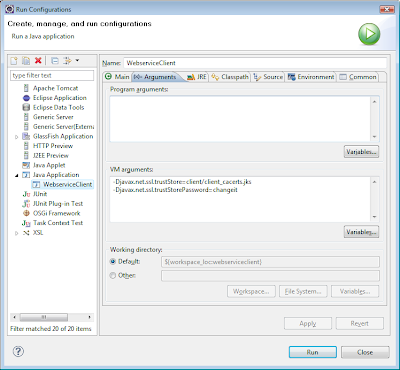
Save and use the following VM parameters to run the client:

-Djavax.net.ssl.trustStore=client/client_cacerts.jks
-Djavax.net.ssl.trustStorePassword=changeit

You can configure the VM parameters in Eclipse here: Run -> Run Configurations


PART 3: Mutual authentication

In the final part, we're replacing the BASIC authentication with mutual authentication with certificates.

Steps:

  1. Create client keystore
  2. Export client certificate
  3. Import client certificate into server truststore
  4. Modify server application for mutual authentication
  5. Modify client application for mutual authentication
  6. Configure Glassfish for mutual authentication


1. Create client keystore
Now, create a client keystore to store its own certificate.

keytool -genkey -alias client -keypass changeit
-storepass changeit -keystore client_keystore.jks

Use the following values to answer questions when prompted:
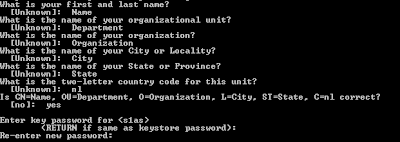


2. Export client certificate
Navigate to the "client" directory with the command prompt. The client certificate is needed on the server side. So we need to export it from the client keystore using the following command:

keytool -export -alias client -keystore client_keystore.jks
-storepass changeit -file client.cer


3. Import client certificate into server truststore
Navigate to the "server" directory and import the client certificate with the command:

keytool -import -v -trustcacerts -alias client
-keystore cacerts.jks -keypass changeit
-file ../client/client.cer

Use the default password "changeit" when asked, and finally type "yes" to accept the certificate.

4. Modify server application for mutual authentication
The file web.xml has to be changed for mutual authentication configuration. Lookup the <auth-method>-element and replace BASIC with CLIENT-CERT.

The sun-web.xml file has also to be modified. Instead of mapping the role to a realm group, we have to map the role to a certificate with the <principal-name>-element:

<sun-web-app>
<security-role-mapping>
<role-name>user</role-name>
<!-- <group-name>wsusers</group-name> -->
<principal-name>CN=Name, OU=Department,
O=Organization, L=City, ST=State,
C=nl</principal-name>
</security-role-mapping>
</sun-web-app>


5. Modify client application for mutual authentication
The username and password we used in the client code for part 1 are not used anymore. So we can remove that part.

The client is now finished, and can be run with the following VM-settings:

-Djavax.net.ssl.keyStore=client/client_keystore.jks
-Djavax.net.ssl.keyStorePassword=changeit
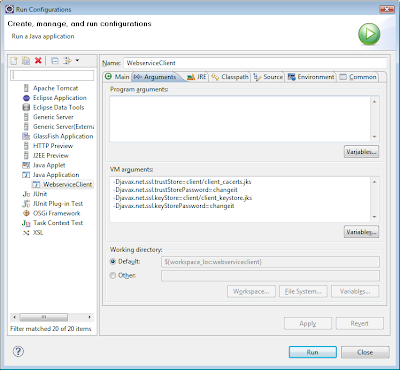


6. Configure Glassfish for mutual authentication
If you experience connection problems when using the client, you're probably using the default Glassfish installation. By default, mutual authentication is disabled. To enable mutual authentication, go to: Configuration -> Network Listeners -> http-listener-2. Click the SSL tab. Make sure "SSL3" is not checked. The checkboxes "TLS" and "Client Authentication" should be checked.
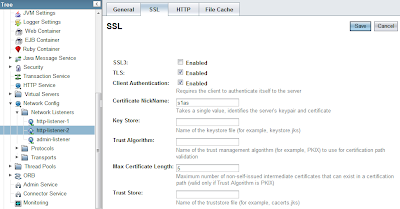


Everything should be working now. In a future blogpost, I will show you how to configure realm users for JBoss.

Friday, October 8, 2010

Web service client with JAX-WS in Eclipse

In this blogpost, I will use JAX-WS to show how easy it is to create a simple client that makes use of the web service we created in the previous blogpost. The client can be implemented in various ways, like a web application or an EJB. In both mentioned ways, you run the client in a Java container. Therefore, you can take advantage of the resource injection facility provided by the container. This means you can use annotations to automatically inject the web service object where needed. We start out by creating a standard client, which does not run in a container.

Let's get started by creating a standard Java project in Eclipse. When done, start up a command prompt and navigate it to the root directory of the newly created project. Use the wsimport command to generate the classes you need to access the web service. You need the URL of the WSDL for this to work. The following command generates the sources and classes, and place them in the default Eclipse directories.

wsimport -s src
-d bin
http://localhost:8080/webservice/ExampleWSService?wsdl

Now, create a new class, which acts as the client. An example client:

package com.javaeenotes;

import javax.xml.ws.WebServiceRef;


public class WebserviceClient {

// This annotation only has effect in a container.
@WebServiceRef(
wsdlLocation =
"http://127.0.0.1:8080/webservice/ExampleWSService?wsdl"
)
private static ExampleWSService service;

public static void main(String[] args) {
WebserviceClient wsc = new WebserviceClient();
wsc.start();
}

public void start() {
// This statement is not needed when run in container.
service = new ExampleWSService();
ExampleWS port = service.getExampleWSPort();
System.out.println(port.greet("Peter"));
System.out.println(port.multiply(3, 4));
}
}

The resource injection annotation is not necessary here, because the client does not run in a container. I left it here to show how to use annotation to inject the resource into your class when run in a container.

Sunday, October 3, 2010

Web service with JAX-WS in Eclipse

In this tutorial, I'll show you how to use JAX-WS to build a web service in Eclipse. JAX-WS stands for Java API for XML Web Services. You can use it to build web services and clients that communicate using XML messages. We are not using the built-in web service generation tool provided by Eclipse. How to build a sample client will be explained in a future blog post.

The basic steps for building a web service:

  1. Code the implementation class
  2. Annotate the class
  3. Use wsgen to generate web service artifacts
  4. Deploy in Glassfish from Eclipse

1. Code the implementation class

First create a dynamic web project in Eclipse. I called my project webservice, but you call your project anything you like. Make sure the target runtime is Glassfish, and select Minimal Configuration in the configuration screen.


In the next screen, accept the default output folder or choose a custom one. Memorize the output folder, because we need this when we generate the web service artifacts.


You don't have to select the last checkbox to auto generate the web.xml deployment descriptor, but you'll need it when your application is also a web application.


Click finish, and your project is ready to use.
Create a new class in the newly created project. This will be the implementation class of the web service. I called mine ExampleWS.


2. Annotate the class

Now it's time to complete the class and use JAX-WS annotation to make it a valid web service.

package com.javaeenotes;

import javax.jws.WebMethod;
import javax.jws.WebService;

@WebService
public class ExampleWS {

@WebMethod
public int sum(int a, int b) {
return a + b;
}

@WebMethod
public int multiply(int a, int b) {
return a * b;
}

@WebMethod
public String greet(String name) {
return "Hello " + name + "!";
}
}

3. Use wsgen to generate web service artifacts

Start a command prompt and navigate to the root of the project directory. Make sure the JDK is in your PATH, or else you can't execute the wsgen command. Create a wsdl directory in WebContent/WEB-INF/ or else wsgen will complain. Use the wsgen command to generate the artifacts like this:

wsgen -classpath build/classes/ -wsdl
-r WebContent/WEB-INF/wsdl -s src
-d build/classes/ com.javaeenotes.ExampleWS

This command will generate the source, class files, and WSDL file for the web service implemented as com.javaeenotes.ExampleWS. When wsgen complains about not finding the class, you have to build the project first. When the command is successful, you can refresh the project and you'll find the artifacts in your project tree.

The generated WSDL-file needs some editting, before you can use it. Open the WSDL-file and search for REPLACE_WITH_ACTUAL_URL. Replace this string with the web service URL: http://127.0.0.1:8080/webservice/ExampleWSService, and save the file.

4. Deploy in Glassfish from Eclipse

I assume you have Glassfish integrated in Eclipse, or else you have to build a WAR-file using ANT and manually deploy it into Glassfish. There is a blog post about integrating Glassfish into Eclipse. You can use the search engine to find it.

Deploy the project in Glassfish by right-clicking the project, click Run As, and finally Run on Server. Select the Glassfish server in the selection screen, and complete this step. When the configuration is finished, Eclipse tries to open a web page, which fails with a 404 error. Don't worry, this is normal, because we just created a web application without pages. Our project contains only a web service.

We can test the newly created web service by using SOAP-UI or the integrated Web Services Explorer in Eclipse. To use the Web Sercice Explorer in Eclipse, browse to the WSDL-file, right-click on it, select Web Services, and click on Test with Web Services Explorer. This will present you the web services test screen, which is pretty easy to use.

Monday, September 6, 2010

SoapUI

SoapUI is a tool that has a lot in common with the tool discussed in my previous blog post. SoapUI also lets you analyze traffic. But this time, it's all about web services traffic like SOAP, and RESTful web services.

One neat feature is importing WSDL-documents in order to create automatic simulation requests. A generated request template can be filled out, before SoapUI sends it to the server. The response of the web service will be nicely printed on the screen for you to analyze. This way, you can easily test or try out your web service.


Links: