Showing posts with label glassfish. Show all posts

Thursday, February 17, 2011

Configuring your Java web application as root (/)

By default, if you deploy an application "myWebApp" in an application server like Glassfish, the root URL is http://my.server.com:8080/myWebApp. To change this, you can use the sun-web.xml descriptor file of the application to configure the application as root application of the server. Which means that the application is accessible using the URL http://my.server.com:8080/.

Inside the sun-web.xml file, make sure the context-root element looks like this:

<context-root>/</context-root>


The document type definition (DTD) of the descriptor file can be found here.

If the web application is part of an EAR-file, make sure you configure this in application.xml. Otherwise, the setting in application.xml will override it!

To make the URL even simpler, you can ofcourse change the listen port to 80. The URL to the application will then look like this: http://my.server.com/

Sunday, October 17, 2010

Securing JAX-WS web services in Eclipse

In this tutorial, we're going to secure the web service created in previous blogposts. If you don't have done that already, please go through the previous two blogposts, because this blogpost will build on the web service created there. We're using container managed security to achieve security. The tutorial consists of three parts. In the first part, we will implement BASIC authentication. In the second part we extend BASIC authentication with Secure Socket Layer (SSL). In the third part, we replace BASIC authentication with mutual authentication using certificates.

PART 1: BASIC authentication

Steps:

  1. Create realm users
  2. Modify server application for BASIC authentication
  3. Modify client application for BASIC authentication

1. Create realm users
In this step we're creating users that are authorized to use the web service. The steps described here are only applicable for the Glassfish application server. I will describe the steps needed for the JBoss application server in a future blogpost.

First, make sure Glassfish is running, and go to the admin console or interface. Use the menu tree on the left to browse to: Security -> Realm -> file
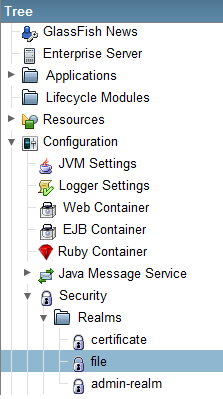


Now in the next screen, click on "Manage Users".
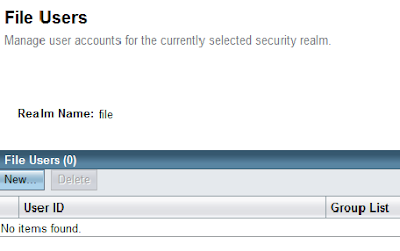


This will take you to the screen "File Users". Click on "New..." to create a new user. In this example, create an user "peter" in the group "wsusers". The password is "qwerty1".
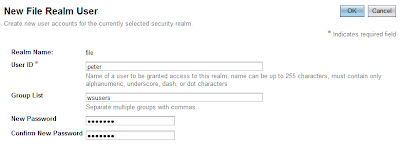


Finally, click "Finish". Now, we have completed creating an user in Glassfish.

2. Modify server application for BASIC authentication
In this step, we have to modify two files: web.xml and sun-web.xml. If you don't have these files, just create them under the WEB-INF directory. In the web.xml file, we protect the web service by adding: a security constraint, login configuration, and roles. To do this, we add the following code directly nested in <web-app>:

<!-- Security constraint for resource only accessible to role -->
<security-constraint>
<display-name>WebServiceSecurity</display-name>

<web-resource-collection>
<web-resource-name>Authorized users only</web-resource-name>
<url-pattern>/ExampleWSService</url-pattern>
<http-method>POST</http-method>
</web-resource-collection>

<auth-constraint>
<role-name>user</role-name>
</auth-constraint>

</security-constraint>

<!-- BASIC authorization -->
<login-config>
<auth-method>BASIC</auth-method>
</login-config>

<!-- Definition of role -->
<security-role>
<role-name>user</role-name>
</security-role>

In the file sun-web.xml, we map the user group created in the application server to the role "user". Put the following code directly under <sun-web-app>:

<security-role-mapping>
<role-name>user</role-name>
<group-name>wsusers</group-name>
</security-role-mapping>

At this point, you can deploy the application and test it with the web service client. If correct, a 404-authorization error will be displayed when the client tries to connect to the web service.

3. Modify client application for BASIC authentication
In this step, we're going to supply an username and password when connecting to a web service in the client. The altered start() method in the file WebServiceClient.java should look like this:

public void start() {
// This statement is not needed when run in container.
service = new ExampleWSService();
ExampleWS port = service.getExampleWSPort();

// Authentication
BindingProvider bindProv = (BindingProvider) port;
Map<String, Object> context = bindProv.getRequestContext();
context.put("javax.xml.ws.security.auth.username", "peter");
context.put("javax.xml.ws.security.auth.password", "qwerty1");

System.out.println(port.greet("Peter"));
System.out.println(port.multiply(3, 4));
}

If we run the client now, we notice that we can successfully connect to the web service without getting authorization errors.

PART 2: Implementing Secure Socket Layer (SSL)

Now, we continue to add Transport Level Security (TLS) using SSL to encrypt the transportation channel. This will prevent eavesdropping and tampering communication data between client and server.

Steps:

  1. Export server certificate from server keystore
  2. Create client truststore and import server certificate
  3. Modify server application for SSL
  4. Modify client application for SSL

1. Export server certificate from server keystore
Open a command prompt and navigate to the root directory of the client. Create a new directory called "server" with the command "mkdir server" and navigate into it. This will be our working directory when manipulating the server keystore/truststore. Copy the following files from the Glassfish_installation/domains/domain1/config directory to the newly created server directory: cacerts.jks (truststore) and keystore.jks (keystore).

Now, we can use the keytool to export the server certificate from the server keystore using the default store password "changeit":

keytool -export -alias s1as -keystore keystore.jks
-storepass changeit -file server.cer

The exported server certificate is now written to the file server.cer.

2. Create client truststore and import server certificate
The next step is to create the client truststore and import the server certificate to it. Create a "client" directory in the root directory of the client, and navigate to it using the command prompt. Now use the keytool to create the client truststore and import the server certificate:

keytool -import -v -trustcacerts -alias s1as -keypass changeit
-file ../server/server.cer -keystore client_cacerts.jks
-storepass changeit

When prompted to trust the certificate, type "yes" and press enter to accept.


3. Modify server application for SSL
Add the following code under the <security-constraint>-element in web.xml to enable SSL:

<user-data-constraint>
<transport-guarantee>CONFIDENTIAL</transport-guarantee>
</user-data-constraint>

When you run the client now, you'll get a 302-error, indicating that the resource has moved.

4. Modify client application for SSL
Edit ExampleWSService.java (generated by wsimport) and lookup the WSDL-URL in the code. Replace the URL with:

https://localhost:8181/webservice/ExampleWSService?wsdl

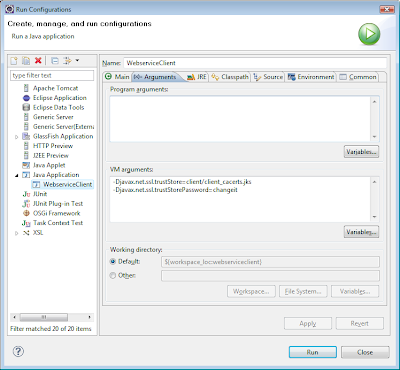
Save and use the following VM parameters to run the client:

-Djavax.net.ssl.trustStore=client/client_cacerts.jks
-Djavax.net.ssl.trustStorePassword=changeit

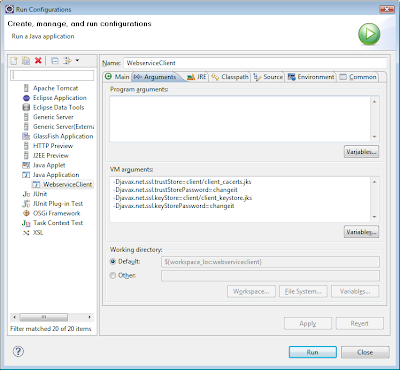
You can configure the VM parameters in Eclipse here: Run -> Run Configurations


PART 3: Mutual authentication

In the final part, we're replacing the BASIC authentication with mutual authentication with certificates.

Steps:

  1. Create client keystore
  2. Export client certificate
  3. Import client certificate into server truststore
  4. Modify server application for mutual authentication
  5. Modify client application for mutual authentication
  6. Configure Glassfish for mutual authentication


1. Create client keystore
Now, create a client keystore to store its own certificate.

keytool -genkey -alias client -keypass changeit
-storepass changeit -keystore client_keystore.jks

Use the following values to answer questions when prompted:
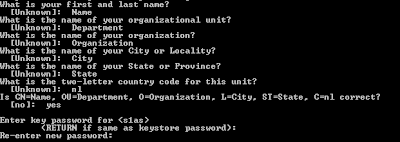


2. Export client certificate
Navigate to the "client" directory with the command prompt. The client certificate is needed on the server side. So we need to export it from the client keystore using the following command:

keytool -export -alias client -keystore client_keystore.jks
-storepass changeit -file client.cer


3. Import client certificate into server truststore
Navigate to the "server" directory and import the client certificate with the command:

keytool -import -v -trustcacerts -alias client
-keystore cacerts.jks -keypass changeit
-file ../client/client.cer

Use the default password "changeit" when asked, and finally type "yes" to accept the certificate.

4. Modify server application for mutual authentication
The file web.xml has to be changed for mutual authentication configuration. Lookup the <auth-method>-element and replace BASIC with CLIENT-CERT.

The sun-web.xml file has also to be modified. Instead of mapping the role to a realm group, we have to map the role to a certificate with the <principal-name>-element:

<sun-web-app>
<security-role-mapping>
<role-name>user</role-name>
<!-- <group-name>wsusers</group-name> -->
<principal-name>CN=Name, OU=Department,
O=Organization, L=City, ST=State,
C=nl</principal-name>
</security-role-mapping>
</sun-web-app>


5. Modify client application for mutual authentication
The username and password we used in the client code for part 1 are not used anymore. So we can remove that part.

The client is now finished, and can be run with the following VM-settings:

-Djavax.net.ssl.keyStore=client/client_keystore.jks
-Djavax.net.ssl.keyStorePassword=changeit


6. Configure Glassfish for mutual authentication
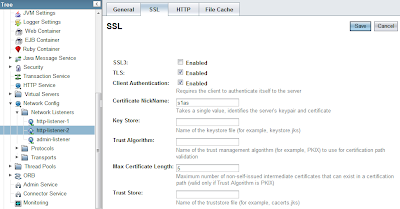
If you experience connection problems when using the client, you're probably using the default Glassfish installation. By default, mutual authentication is disabled. To enable mutual authentication, go to: Configuration -> Network Listeners -> http-listener-2. Click the SSL tab. Make sure "SSL3" is not checked. The checkboxes "TLS" and "Client Authentication" should be checked.


Everything should be working now. In a future blogpost, I will show you how to configure realm users for JBoss.

Sunday, September 19, 2010

Glassfish integration in Eclipse 3.6 (Helios)

Developing in Eclipse for Glassfish is easier when Glassfish is integrated into the IDE. This way, it's possible to right-click the project to deploy the selected project automatically in Glassfish.

In this tutorial, I will show you how to integrate a local Glassfish installation into Eclipse 3.6 (Helios). Before we start, I assume you've installed: Eclipse 3.6, the Java RE, the Java JDK, and the Java EE SDK. Install Java RE and JDK first, before you install the Java SDK.

The first step is to start up Eclipse and locate the servers tab, which is found at the bottom of the screen for default installations.


Now, right-click somewhere in the tab, select "new", and then "server". The following screen will pop up, with the default server adapters.


The server adapter for Glassfish is not included by default. So we have to click "Download additional server adapters" to download the server adapter for Glassfish. A screen will pop up with a selection of server adapters. Select "Oracle Glassfish Server Tools", which is the adapter we're looking for.


Click "next" to download and install the server adapter. Restart Eclipse, when the installation is finished. After the restart, the Glassfish server adapter will show up in the list from the servers tab.


Select it, and click next. The next screen lets you configure the server adapter. Select a working JRE environment and select the installation path of your Glassfish application server.


Click next to go to the next screen. If you have set an administrator password during the installation of Glassfish, you have to fill in this password in the form. Otherwise, use the default values and click next to proceed.


The next screen lets you select existing projects to be added to the newly configured server adapter. The screen is empty in this tutorial, because we're using a fresh install.


When the configuration is succesful, you'll see the server adapter in the servers tab. Now, you can start using it by right-clicking on the server.


From this menu, you can:

  • start/stop the server
  • add/remove new projects
  • publish/unpublish projects
  • view the administration console
  • update Glassfish

Have fun playing with Glassfish in Eclipse!

Tuesday, April 13, 2010

Using JavaMail API with Glassfish and GMail

In this post, I'll show you how to configure JavaMail to use the SMTP server of GMail in Glassfish. This way, you avoid hardcoding server addresses in your application and make your application more portable. It also minimalizes the amount of "plumping" code.

Setup Glassfish

First, fire up the admin screen of Glassfish and click on JavaMail Sessions. Then create a new session configuration by clicking "new".

Make sure the following fields are filled in:

  • JNDI name: mail/<name>
  • Mail Host: smtp.gmail.com
  • Default User: <email>
  • Default Return Address: <email>

The JNDI name must be prefixed with "mail/". Use your GMail email address in last two fields.

Skip the Advanced settings and create additional properties at the bottom of the screen:

  • mail.smtp.socketFactory.port: 465
  • mail.smtp.port: 465
  • mail.smtp.socketFactory.fallback: false
  • mail.smtp.auth: true
  • mail.smtp.password: <gmail_password>
  • mail.smtp.socketFactory.class: javax.net.ssl.SSLSocketFactory

Use your valid GMail password in the password field. Save, and your configuration is ready for use.

Example client to send email with attachments

Next, we create a client to use the newly created JavaMail service in Glassfish. Before we can do that, we need the application server libraries: appserv-rt.jar and javaee.jar. You can find them in the lib directory of your Glassfish installation. Make sure all the libraries are in your build/class-path.

If you still get unresolved classes related to JavaMail, then you might also need the JavaMail libraries, which you can download here.

The example client below builds an email with three attachments from three different sources, and sends the email to two recipients. You have to use MIME-types to indicate the type of attachments. Save the code below as Main.java, compile, and run!

import javax.activation.DataHandler;
import javax.activation.DataSource;
import javax.activation.FileDataSource;
import javax.mail.BodyPart;
import javax.mail.Message;
import javax.mail.Multipart;
import javax.mail.Session;
import javax.mail.Transport;
import javax.mail.internet.InternetAddress;
import javax.mail.internet.MimeBodyPart;
import javax.mail.internet.MimeMessage;
import javax.mail.internet.MimeMultipart;
import javax.mail.internet.MimeMessage.RecipientType;
import javax.mail.util.ByteArrayDataSource;
import javax.naming.InitialContext;

public class Main {

public void runTest() throws Exception {
InitialContext ctx = new InitialContext();
Session session =
(Session) ctx.lookup("mail/<name>");
// Or by injection.
//@Resource(name = "mail/<name>")
//private Session session;

// Create email and headers.
Message msg = new MimeMessage(session);
msg.setSubject("My Subject");
msg.setRecipient(RecipientType.TO,
new InternetAddress(
"tony@email.com",
"Tony"));
msg.setRecipient(RecipientType.CC,
new InternetAddress(
"michelle@email.com",
"Michelle"));
msg.setFrom(new InternetAddress(
"jack@email.com",
"Jack"));

// Body text.
BodyPart messageBodyPart = new MimeBodyPart();
messageBodyPart.setText("Here are the files.");

// Multipart message.
Multipart multipart = new MimeMultipart();
multipart.addBodyPart(messageBodyPart);

// Attachment file from string.
messageBodyPart = new MimeBodyPart();
messageBodyPart.setFileName("README1.txt");
messageBodyPart.setContent(new String(
"file 1 content"),
"text/plain");
multipart.addBodyPart(messageBodyPart);

// Attachment file from file.
messageBodyPart = new MimeBodyPart();
messageBodyPart.setFileName("README2.txt");
DataSource src = new FileDataSource("file.txt");
messageBodyPart.setDataHandler(new DataHandler(src));
multipart.addBodyPart(messageBodyPart);

// Attachment file from byte array.
messageBodyPart = new MimeBodyPart();
messageBodyPart.setFileName("README3.txt");
src = new ByteArrayDataSource(
"file 3 content".getBytes(),
"text/plain");
messageBodyPart.setDataHandler(new DataHandler(src));
multipart.addBodyPart(messageBodyPart);

// Add multipart message to email.
msg.setContent(multipart);

// Send email.
Transport.send(msg);
}

public static void main(String[] args) {
Main cli = new Main();
try {
cli.runTest();
} catch (Exception e) {
e.printStackTrace();
}
}
}

Wednesday, April 7, 2010

Configuring an Oracle DataSource on Glassfish

A DataSource connection has important advantages over the use of DriverManager:

- The use of logical names in the application, instead of using hard coded database addresses (in property files)
- Connection pooling managed by the container
- Distributed transactions managed by the container

To configure an Oracle datasource on Glassfish, follow the following steps:

1. Copy the JDBC driver of Oracle to the lib directory of your Glassfish installation directory.

2. Restart Glassfish.

3. Login to the admin page.

4. Browse to the Connection Pools page (Resources -> JDBC -> Connection Pools)

5. Create a new connection pool by clicking on New.

6. Give the pool a name (NOT prefixed with jdbc/), choose oracle.jdbc.pool.OracleDataSource as resource type and Oracle as vendor.

7. Now click next. The driver class is automatically detected, so it's automatically filled in. Next, make sure you fill in the properties: user, password and URL.

Example:

url=jdbc:oracle:thin:@<host>:1521:<sid>
user=<user>
password=<password>

8. Save and ping to see if it works. If so, the pool is ready to be used.

9. Now browse to the JDBC Resources page (Resources -> JDBC -> JDBC Resources).

10. Create a new JDBC resource by clicking on New.

11. Fill in the JDBC resource name (prefixed with jdbc/), and select the newly created connection pool in Pool Name. The DataSource is now ready for use.

Sunday, April 4, 2010

Developing EJB 3.0 in Eclipse

This tutorial will show you how to develop a Java EE Session Bean in Eclipse, and deploy it in on an application server.

Before you begin, you need to have have both the Java Development Kit (JDK) and an application server installed on localhost. In this example I used Glassfish, which has an autodeploy directory. When an EJB jar file is dropped into the autodeploy directory, the application server automatically deploys it. To download the JDK, click here. To download Glassfish, click here.

Step 1: Create new EJB project


Let Eclipse generate the EJB-deployment descriptor.


Include two Java EE jars (appserv-rt.jar and javaee.jar) which is needed to compile the beans. You can find the jars in the lib directory of your Glassfish installation directory. Add the jars to your project build path (Right-click on project, then click Build Path).


Step 3: Create the EJB Stateless Session Bean


When you finish this step, you will find three skeleton class files of your bean. Make sure they look like the code examples below:

ExampleSessionBean source:

package example;

import javax.ejb.Stateless;

@Stateless(name = "ExampleSessionBean",
mappedName = "ejb/ExampleSessionBean")
public class ExampleSessionBean implements
ExampleSessionBeanRemote, ExampleSessionBeanLocal {

public ExampleSessionBean() {
;
}

public int multiply(int a, int b) {
return a * b;
}

public int add(int a, int b) {
return a + b;
}

public int substract(int a, int b) {
return a - b;
}
}


ExampleSessionBeanLocal source:

package example;
import javax.ejb.Local;

@Local
public interface ExampleSessionBeanLocal {
public int multiply(int a, int b);

public int add(int a, int b);

public int substract(int a, int b);
}


ExampleSessionBeanRemote source:

package example;
import javax.ejb.Remote;

@Remote
public interface ExampleSessionBeanRemote {
public int multiply(int a, int b);

public int add(int a, int b);

public int substract(int a, int b);
}


Step 7: Export project as EJB jar

To compile the EJB-jar file, we select the project and do a right-click. Now select Export and then EJB JAR file. Now fill in the next screens:


Step 8: Deploy the EJB-jar
Now drag and drop the exported EJB-jar file to the autodeploy directory of Glassfish. The bean is now ready for use.

Step 9: Create remote test client

The step described next is optional. In this step we create a test client, which is run within Eclipse to test the remote EJB interface we created.

import javax.naming.InitialContext;

import example.ExampleSessionBeanRemote;

public class Main {
public void runTest() throws Exception {
InitialContext ctx = new InitialContext();
ExampleSessionBeanRemote bean =
(ExampleSessionBeanRemote) ctx
.lookup("ejb/ExampleSessionBean");
int result = bean.multiply(3, 4);
System.out.println(result);
}

public static void main(String[] args) {
Main cli = new Main();
try {
cli.runTest();
} catch (Exception e) {
e.printStackTrace();
}
}
}


Compile and run within Eclipse to view the result in the Console tab.